
Skip to content
EmberFocus
NewTime blocks that turn into timers

Deep focus,
one flip
at a time.

Plan your day in time blocks. Tap Start and each block becomes a full-screen flip clock — then see exactly where your hours went.

Download on the App Store
  • Free to use
  • No account
  • Works with Wi-Fi off
  • Android coming soon
CountdownPhysics problem set
Ends at —
A live countdown: 49 minutes 59 seconds left.
  • Studying
  • Deep work
  • Creative projects
  • Reading
  • Fitness
  • Mindfulness
  • Building habits
How Ember works

Plan. Focus. Track. Review.

Most apps make you choose between a planner and a timer. In Ember they’re the same thing — the block you plan is the clock you run.

  1. 01 · Plan

    Plan your day in time blocks.

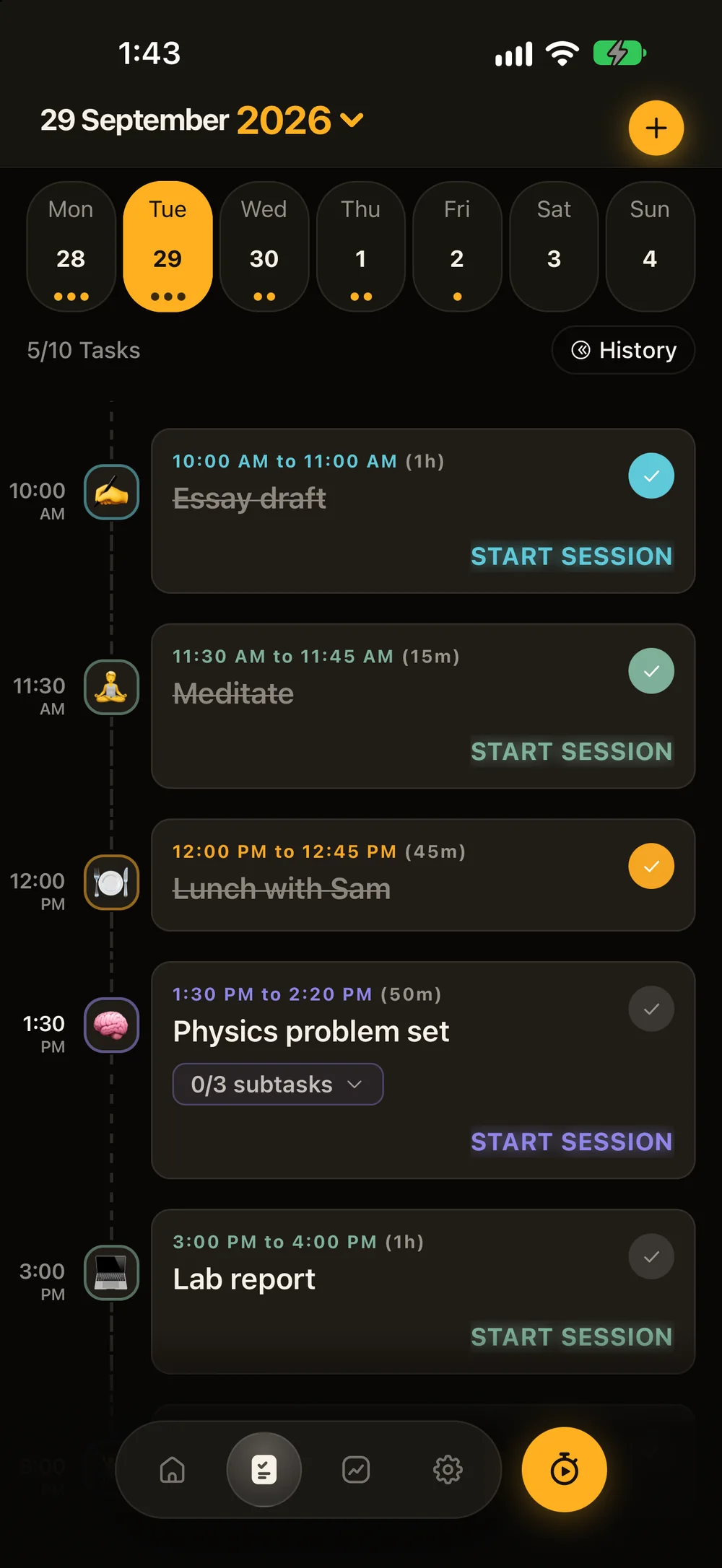
    Give each task a time, a length, a colour and an icon. Switch on Focus session and the block gets its own Start button.

    • Time & length
    • Subtasks & notes
    • Alerts
    • Repeats
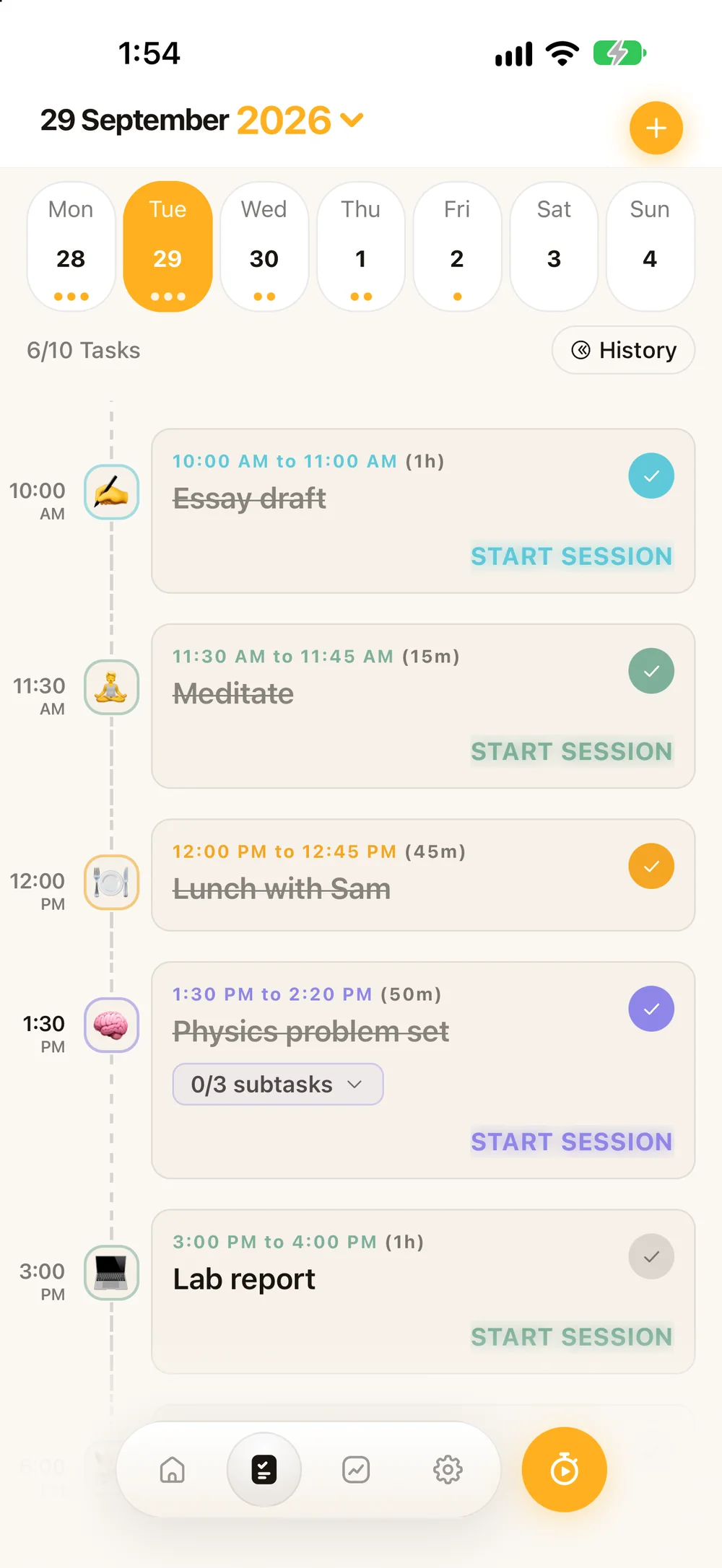
    Ember's To-Do timeline with morning blocks ticked off and the 1:30 PM Physics problem set block ready to start
  2. 02 · Focus

    Tap Start. The block becomes the clock.

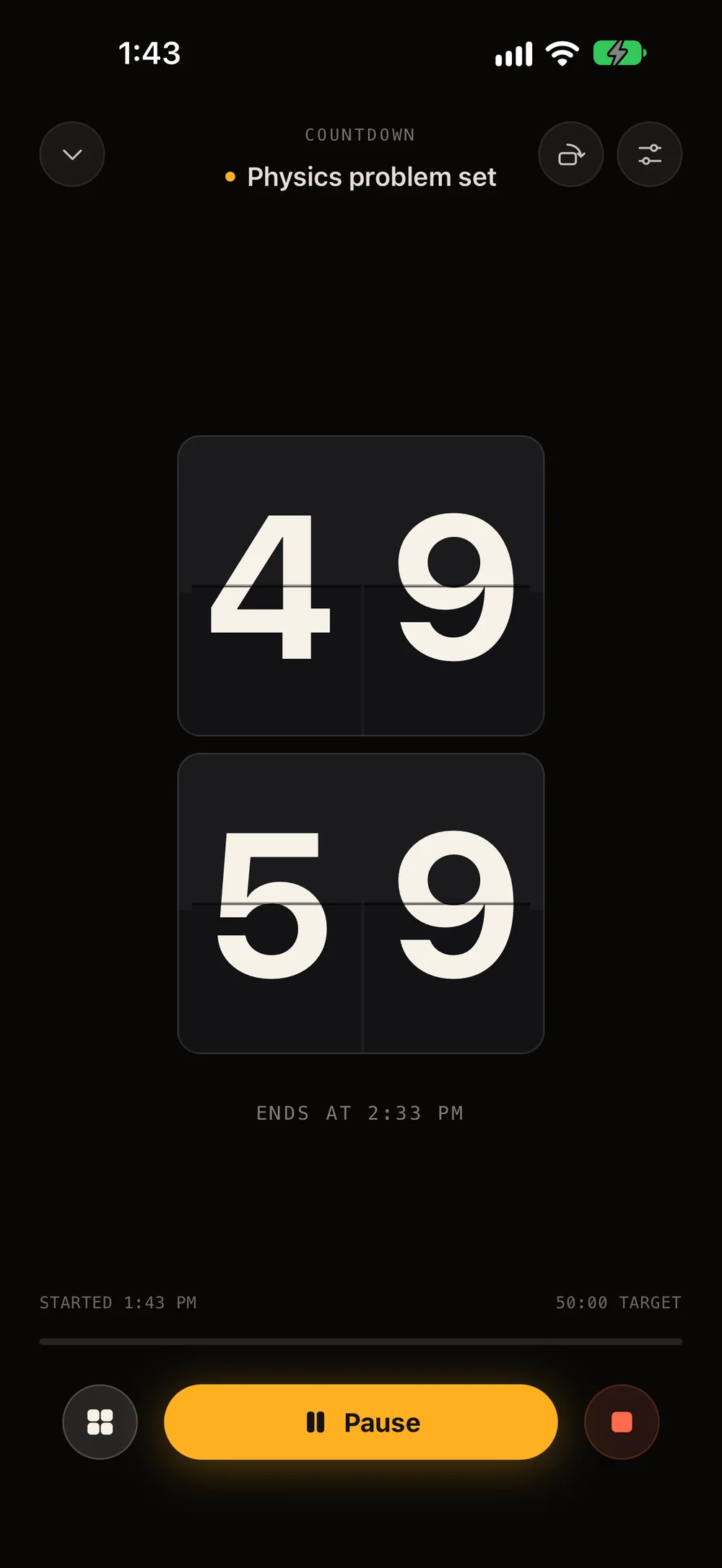
    A full-screen flip countdown, titled with your task and sized to your block. After a few seconds the controls fade away and only the time is left.

    • Countdown
    • Timer
    • Pomodoro
    • Landscape
    The focus screen: a flip-clock countdown at 49:59 for Physics problem set, ending at 2:33 PM
  3. 03 · Track

    Finish the block. It ticks itself off.

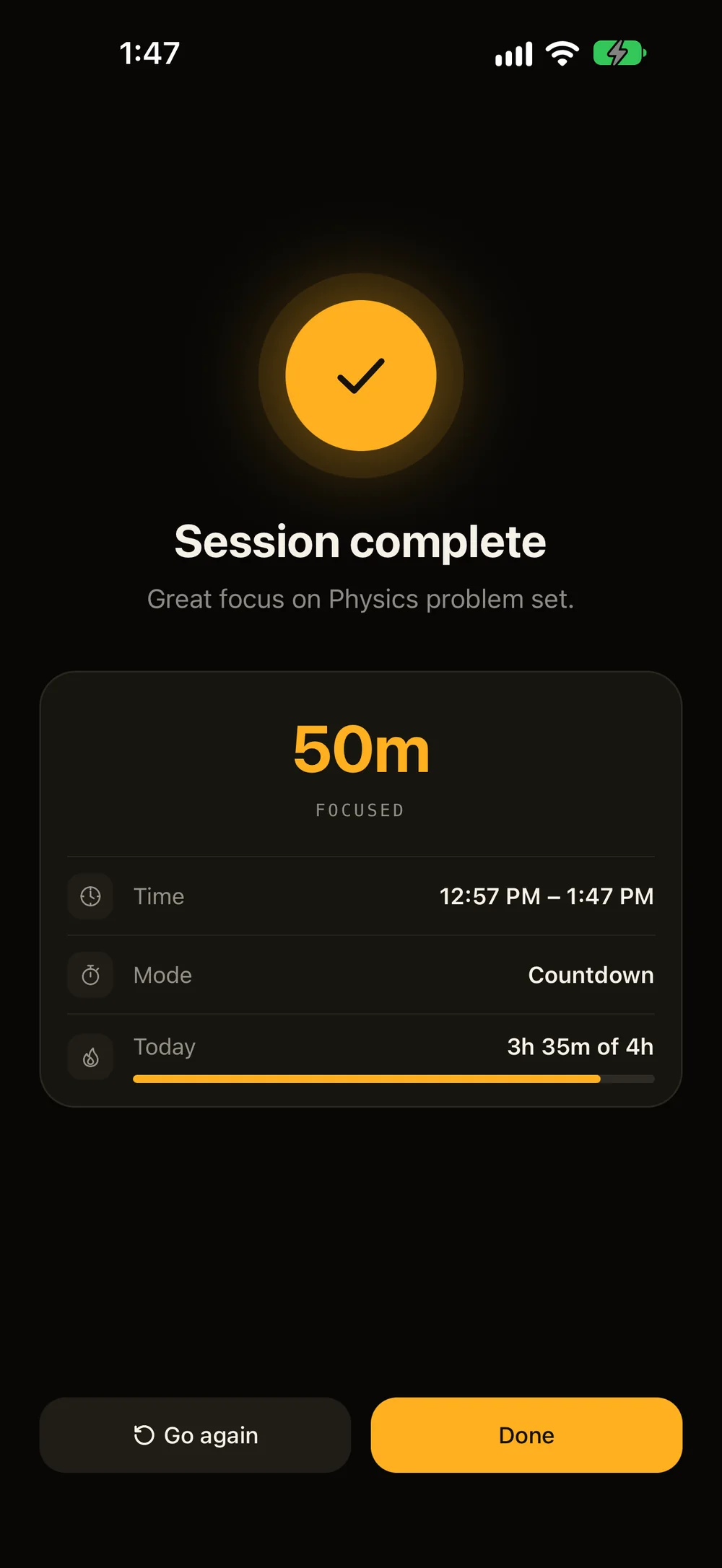
    The moment a session ends it’s saved — even if you stop early — and the block is checked off on your timeline. No double bookkeeping.

    • Auto-tick
    • Session summary
    • Daily goal
    Session complete: 50 minutes focused on Physics problem set, 3h 35m of a 4h goal today
  4. 04 · Review

    See where your hours went.

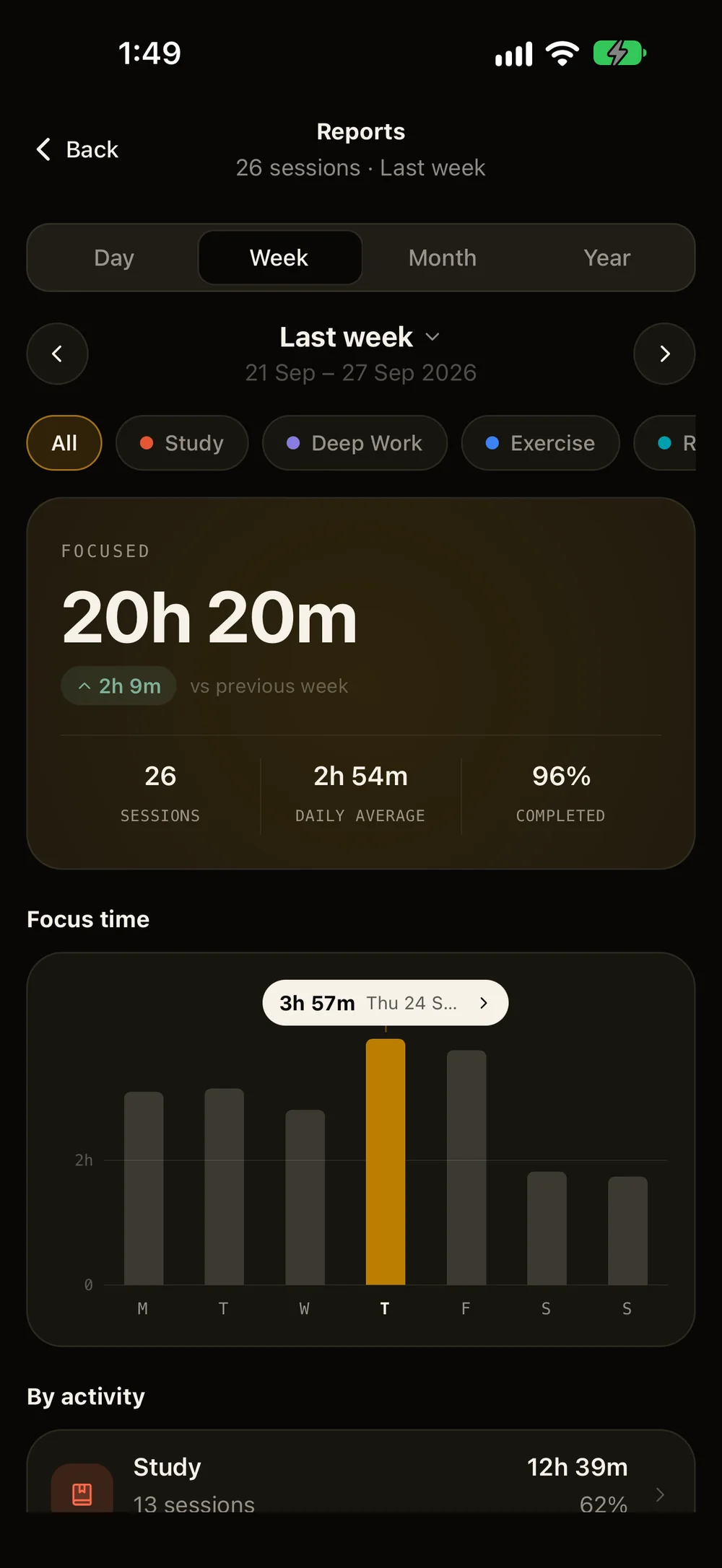
    Day, week, month and year, split by activity — with your peak focus hours, your longest sessions and how often you finish what you start.

    • By activity
    • Peak hours
    • Completion
    Week report: 20h 20m focused across 26 sessions, up 2h 9m on the previous week
01 · Plan

Everything a block needs. Nothing it doesn’t.

Build a block in seconds — a time, a length, an activity — then add only what helps: subtasks, notes, alerts or a repeat.

29 September 2026

Mon28
Tue29
Wed30
Thu1
Fri2
Sat3
Sun4
3/6 Tasks History
  1. 7:00AM

    7:00 AM to 7:30 AM (30m)

    Morning run

  2. 10:00AM

    10:00 AM to 11:00 AM (1h)

    Essay draft

  3. 11:30AM

    11:30 AM to 11:45 AM (15m)

    Meditate

  4. 1:30PM

    1:30 PM to 2:20 PM (50m)

    Physics problem set

    0/3 subtasks ⌄Start session
  5. 3:00PM

    3:00 PM to 4:00 PM (1h)

    Lab report

    Start session
  6. 6:30PM

    6:30 PM to 7:30 PM (1h)

    Reading

    Start session

Your whole day on one timeline

Blocks sit on a rail in time order, with a week strip on top and a calendar a tap away. Finished blocks strike themselves through.
345
293031
AMPM
456
141516
AMPM
15m30m45m1hCustom

A time and a length

Spin the wheel, then pick 15, 30 or 45 minutes, an hour, or your own length.

Focus session

Start a focus session instead of a checklist item

StudyExerciseMeditateReadingDeep Work

One switch makes it a session

Turn on Focus session, pick an activity, and the block gets its own Start button.

  • Email tutor about labAnytime
  • Pick up the textbook5:30 PM

Or keep it a simple to-do

Leave the switch off for plain checklist items — with a time, or anytime today.

  • Read chapter 4
  • Problems 1–6
  • Check the answers
Study group in room 204 — bring the formula sheet

Subtasks and notes

Break a block into steps, and keep links, notes or phone numbers with it.

  • At start
  • 15 min before
  • At the end
NeverDailyWeeklyMonthly
MTWTFSS

Alerts and repeats

Get a nudge at the start, before or at the end. Repeat daily, weekly on chosen days, or monthly.

EmojiIcons

Colours and icons

Presets or any colour you like, with an emoji or an icon for every block.

02 · Focus

Countdown, timer or Pomodoro.

Pick how you like to work. Ember runs the clock, tells you when you’ll finish, and logs every minute.

Pick a length and Ember tells you exactly when you’ll be done.

Length
45min

Start now and it ends at —

9:41
CountdownStudy
Ends at —
Started —45:00 target
Pause

Stay in the zone

  • Controls that step aside

    After a few seconds only the time is left on screen.

  • Keep the screen awake

    Auto-Lock stays off until you finish.

  • Dim after 30 seconds

    Saves battery on a propped-up phone.

  • Brightness by drag

    Dim or brighten the clock without leaving it.

  • Turn it sideways

    Rotate the face for a desk-sized landscape clock.

  • Quiet while you focus

    Silence session alerts until you’re done.

  • Haptics on start & finish

    A soft tap when a session begins and ends.

  • Goals that nudge

    On an open timer, get a gentle nudge at your goal.

Make it yours

Five faces. Seven flip colours.

Choose how your time looks, pick a sound to focus to, and tune the digits and accent until it feels like yours.

Countdown · Study

Ends at —

Clock face

Flip colourCharcoal

Numbers

AccentAmber

SoundTap to listen

Pick a face for each session, or set your favourite as the default in Settings.

03 · Track

Your day, at a glance.

Home shows today’s focus against your goal and how it compares with a usual day. Finished tasks build a streak you won’t want to break.

Today

Tuesday 29 September

Focused today

3h 35m

3h 35m of 4h goal

+47m ahead of your usual Tuesday

Study 2h 20mDeep Work 1hMeditate 15m

Start a session

See all
Study2h 20m today
ExerciseNot yet today
Meditate15m today
ReadingNot yet today
Deep Work1h today
New activity

9

Day streak

Best

12 days

Today’s done — your streak is safe.

September 2026

MTWTFSS123456789101112131415161718192021222324252627282930
LessMore Streak

Goals that keep you honest

  • Daily target4h
  • Week starts onMonday
  • Nudge me at 8:00 PM
Ember nowTime to focusA short session now keeps your daily goal on track.
04 · Review

See where your hours went.

Every session lands in your reports — by day, week, month and year, split by activity, with the hours you focus best.

Last week

21 Sep – 27 Sep 2026

AllStudyDeep WorkExerciseReadingMeditate

Focused

20h 20m

↑ 2h 9mvs previous week

26

Sessions

2h 54m

Daily average

96%

Completed

3h 57m · Thu 24 Sep
MTWTFSS

By activity

Last week
  • Study12h 39m
    13 sessions62%
  • Exercise3h 30m
    4 sessions17%
  • Reading1h 50m
    4 sessions9%
  • Deep Work1h 41m
    2 sessions8%
  • Meditate40m
    3 sessions3%

When you actually focus

Most focused around 9 AM

12 AM6 AM12 PM6 PM11 PM

Study · 13 sessions

Activity details

Tap any activity for its average and longest session, the time of day it goes best, and how often you finish what you start.

58m

Avg session

1h 34m

Longest session

9 AM

Best time

92%

Completed

Desk clock

A clock worth looking at.

Prop your phone up and Ember becomes a flip clock for your desk — with seconds, the date and fifteen world cities. Start a session from it whenever you’re ready.

AM

Device time·Follows your phone

Beyond the app

Your session, wherever you look.

Leave Ember and your time comes with you — in the Dynamic Island, on the Lock Screen, floating over other apps and on your Home Screen.

iPhone · iOS 16.2+

Live Activities

A running session lives in the Dynamic Island and on your Lock Screen — glanceable without unlocking, and one tap takes you straight back.

Study24:58

Tuesday 29 September

9:41

Study

Ends 10:06 PM
24:58
Android

A clock that floats

Float a clock window over other apps and your Home Screen. Drag it anywhere — while a session runs, it shows your timer.

9:41

Tue 29 Sep

ClassicBoldLEDFlip
iPhone

Ten Home Screen widgets

Flip Clock, Watchface, Field, Month Calendar, Week Grid, Split Calendar, Abstract Art and three World Clocks.

29 Sep10AM
Tue4218
Flip Clock
SEPTEMBERTUESDAY
123456789101112131415161718192021222324252627282930
Month Calendar
  • London10:42
  • New York5:42
  • Tokyo6:42
World Clock
iPhone & Android

Reminders that know your rhythm

A heads-up before your usual focus time, a daily nudge when you choose, and alerts for finished sessions, Pomodoro rounds, breaks and tasks.

  • Ember8:55 AMYour usual focus time is coming upGet set — a session around now fits your routine.
  • Ember9:25 AMRound 1 of 4 completeTime for a 5-minute break.
  • Ember10:35 AMStudy session completeNice work — your session has finished.
Personal from minute one

Built around how you focus.

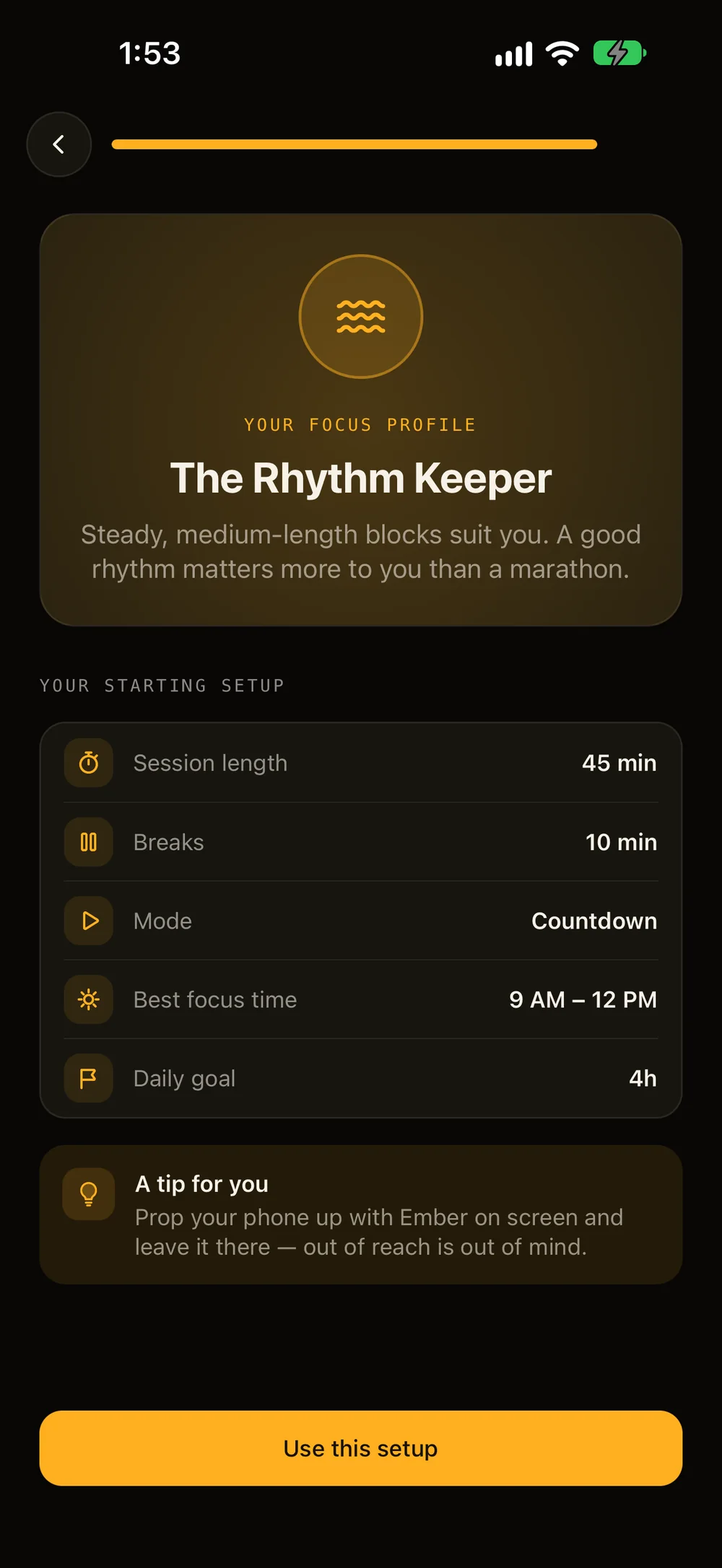
Answer seven quick questions and Ember sets up your session length, breaks, mode and daily goal — plus a tip for whatever pulls you away. Skip it if you’d rather dive in.

  1. 01What do you want to focus on?
  2. 02When is your mind sharpest?
  3. 03How long can you usually stay focused?
  4. 04What pulls you away most?
  5. 05How do you like to plan your day?
  6. 06What does your day look like?
  7. 07How much focus a day feels right?
Ember's onboarding result: your focus profile is The Rhythm Keeper, with a 45-minute session, 10-minute breaks and a 4-hour daily goal
  • The Sprinter

    Short, sharp bursts with real breaks keep your energy high.

  • The Rhythm Keeper

    Steady, medium-length blocks. A good rhythm matters more than a marathon.

  • The Deep Diver

    Once you’re in, you stay in. Long, uninterrupted sessions are where you shine.

The details

Small things, done properly.

A day and a night theme, your choice of accent, an icon that follows your phone, fifteen languages — and nothing to sign up for.

Night and day

A warm night theme for the desk lamp hours and a paper-white day theme — switch with one tap from Home.

The timeline in the night theme
The same timeline in the day theme
Day iconDay
Night iconNight

An icon for day and night

The Flip Eclipse icon glows amber by day and turns midnight blue when your phone switches to dark mode.

Fifteen accent colours

Amber is ours. Pick coral, sage, sky, violet or ten others and the whole app follows.

Speaks fifteen languages

Follows your phone, or pick one in Settings.

EnglishEspañolFrançaisDeutschItalianoPortuguêsРусский日本語한국어中文हिन्दीTürkçeNederlandsPolskiBahasa IndonesiaEnglishEspañolFrançaisDeutschItalianoPortuguêsРусский日本語한국어中文हिन्दीTürkçeNederlandsPolskiBahasa Indonesia

A flip built natively

Every flip is drawn by native code on iPhone and Android, so it stays smooth on older phones too. Choose from five completion sounds — bell, chime, pulse, digital and xylophone — with haptics on start and finish.

No account

Open it and start. No sign-up, no email, no password.

Your data stays put

Plans, sessions and goals are stored on your phone — not on our servers.

Works with Wi-Fi off

Every timer, plan and report works offline.

Pricing

Every feature is free.

Ember is supported by a few well-placed ads. If you’d rather have none, Pro removes every one of them — and keeps Ember independent.

Ember

Free

Everything Ember does, for everyone.

  • Every face, report, reminder and widget
  • Unlimited sessions, blocks and activities
  • Ads only at natural breaks — never during a session
  • Watch one short video for two hours without ads
Download on the App Store

Ember ProFree trial

No ads

Focus without interruptions.

  • No ads, ever — not between sessions, not anywhere
  • Every face, report and reminder, uninterrupted
  • Support an independent app and what comes next
  • Weekly, monthly or yearly, with a free trial

Start Pro from Settings in the app. Prices are shown before you buy, and you can cancel any time in your App Store or Google Play account.

Questions

Good to know.

Something else on your mind? Email us, or message us on WhatsApp or by text at +92 349 6772797.

Is Ember really free?

Yes. Every feature is free. Ember shows a few ads at natural breaks — after you finish a session or close the clock — never during a session. Ember Pro removes them.

Do I need an account?

No. Open the app and start. There’s no sign-up, and your plans and sessions are stored on your phone.

Does it work offline?

Yes. Timers, plans, reminders and reports all work with Wi-Fi off.

Does Ember block other apps?

No. Ember keeps a full-screen clock in front of you and your phone out of your hand, but it doesn’t lock or block other apps.

What happens if I stop a session early?

It still counts. Ember logs the time you focused, and a session started from a block ticks that block off.

Can I use the Pomodoro technique?

Yes. Set the focus length, break length and number of rounds, and Ember runs the rounds and breaks and tells you when you’ll finish.

Can I see a session without unlocking my phone?

On iPhone, a running session shows in the Dynamic Island and on the Lock Screen as a Live Activity (iOS 16.2 or later). On Android, a floating clock can sit over your other apps.

Which devices does Ember run on?

iPhone with iOS 15.1 or later, from the App Store. Ember for Android is on its way to Google Play.

Which languages does it speak?

English, Spanish, French, German, Italian, Portuguese, Russian, Japanese, Korean, Chinese, Hindi, Turkish, Dutch, Polish and Indonesian.

How do I cancel Ember Pro?

Manage or cancel your subscription any time in your App Store or Google Play account settings. Settings → Manage Subscription in Ember takes you there.

What data does Ember collect?

Your sessions, activities and goals never leave your phone. The free version shows ads from Google AdMob, and purchases go through Apple, Google and Adapty. The privacy policy has the details.

Start your first block.

Free on the App Store. No account, no setup — plan one block, tap Start, and watch the clock flip.

Download on the App StoreComing soonAndroid